Block Shoppable Video: Difference between revisions
m (→Overview) |
|||
| (6 intermediate revisions by the same user not shown) | |||
| Line 1: | Line 1: | ||
{{DISPLAYTITLE:Block: Shoppable Video}} | {{DISPLAYTITLE:Block: Shoppable Video Carousel}} | ||
=== Overview === | === Overview === | ||
The Shoppable | The Shoppable Videos section (available with the Pro plan) lets customers quickly buy products featured in your videos. Just create a video slider with your uploaded videos and tag a product to each one. The main video will autoplay on all devices. | ||
{{Note|'''Useful Information''': | {{Note|'''Useful Information''': | ||
Besides the Shoppable Video, Easy Content Builder offers five other block types for displaying videos: | Besides the Shoppable Video, Easy Content Builder offers five other block types for displaying videos: | ||
1. [ | 1. [[Block_Video|Video]] section: Add horizontal and vertical videos to your Shopify pages by using uploads or video URLs, perfect for UGC, product launches, announcements, and product reviews. Supports TikTok, YouTube Shorts, Vimeo, and Instagram Reels for vertical videos. | ||
2. [[Block_Video_Slider|Video Slider]] section: Create a clean video slider or grid from your uploaded videos. When clicked, the videos will open in a modal. | 2. [[Block_Video_Slider|Video Slider]] section: Create a clean video slider or grid from your uploaded videos. When clicked, the videos will open in a modal. | ||
| Line 20: | Line 20: | ||
Using a shoppable video slider with your locally hosted videos on your Shopify store is a great idea. You can tag products shown in each video, making it simple for customers to buy. It's perfect for featuring UGC, video reviews, or how-to tutorials to enhance product discovery and engagement. | Using a shoppable video slider with your locally hosted videos on your Shopify store is a great idea. You can tag products shown in each video, making it simple for customers to buy. It's perfect for featuring UGC, video reviews, or how-to tutorials to enhance product discovery and engagement. | ||
[[File:Ecb-shoppable-video-newsletter.png|frameless|800x800px]] | |||
See the shoppable video slider examples [https://easy-content-builder-demo.myshopify.com/pages/theme-section-video-20 here], [https://easy-content-builder-demo.myshopify.com/pages/theme-section-video-18 here]. | See the shoppable video slider examples [https://easy-content-builder-demo.myshopify.com/pages/theme-section-video-20 here], [https://easy-content-builder-demo.myshopify.com/pages/theme-section-video-18 here]. | ||
| Line 25: | Line 27: | ||
===How to add Shoppable Video section=== | ===How to add Shoppable Video section=== | ||
*'''Step 1''': Add a '''Section Settings''' section that allows you to control the global settings of the '''Shoppable | *'''Step 1''': Add a '''Section Settings''' section that allows you to control the global settings of the '''Shoppable Videos''' section. | ||
:In this special section, you can specify multi-column layouts, enable full width, set the section's maximum width, choose a background color, and define global margins and padding, among other options. | :In this special section, you can specify multi-column layouts, enable full width, set the section's maximum width, choose a background color, and define global margins and padding, among other options. | ||
:[[File:Ecb-section-setting-video.jpg|frameless|800x800px]] | :[[File:Ecb-section-setting-video.jpg|frameless|800x800px]] | ||
:{{Note|Note: If you want to add a video carousel next to the Add to Cart button on your product page, use the [[Block_Video_Slider#How_to_add_Video_Slider_section|Video Slider section]] instead of the Shoppable | :{{Note|Note: If you want to add a video carousel next to the Add to Cart button on your product page, use the [[Block_Video_Slider#How_to_add_Video_Slider_section|Video Slider section]] instead of the Shoppable Videos section. It provides a better viewing experience in a modal, especially on mobile devices.|reminder}} | ||
*'''Step 2''': Add a '''Shoppable | *'''Step 2''': Add a '''Shoppable Videos''' section and customize the settings according to your preferences. | ||
:[[File:Ecb-shoppable-video.jpg|frameless|800x800px]] | :[[File:Ecb-shoppable-video.jpg|frameless|800x800px]] | ||
{{Note|''If you are new to our Easy Content Builder, please take a look at the [[Add_section_settings|Add Sections]] section for detailed instructions on how to add a section to your theme.|reminder}} | {{Note|''If you are new to our Easy Content Builder, please take a look at the [[Add_section_settings|Add Sections]] section for detailed instructions on how to add a section to your theme.|reminder}} | ||
===Shoppable | ===Shoppable Videos global settings=== | ||
{| class="wikitable" | {| class="wikitable" | ||
|+ | |+ | ||
| Line 90: | Line 92: | ||
|Set spacing between elements and their content. | |Set spacing between elements and their content. | ||
|} | |} | ||
===Add other content blocks=== | |||
You can add many content blocks to a section you've created. These content blocks will be displayed in different positions within the section, depending on the Desktop/Mobile Layouts you configure. | |||
[[File:Ecb-block-v2.jpg|border|frameless|800x800px]] | |||
{{Note|See [https://easy-content-builder-demo.myshopify.com/pages/section-variations all content blocks] available that you can add to a section.|reminder}} | |||
Latest revision as of 07:20, 9 July 2025
Overview
The Shoppable Videos section (available with the Pro plan) lets customers quickly buy products featured in your videos. Just create a video slider with your uploaded videos and tag a product to each one. The main video will autoplay on all devices.
Besides the Shoppable Video, Easy Content Builder offers five other block types for displaying videos:
1. Video section: Add horizontal and vertical videos to your Shopify pages by using uploads or video URLs, perfect for UGC, product launches, announcements, and product reviews. Supports TikTok, YouTube Shorts, Vimeo, and Instagram Reels for vertical videos.
2. Video Slider section: Create a clean video slider or grid from your uploaded videos. When clicked, the videos will open in a modal.
3. Gallery Section: Showcase a grid of photos alongside a featured video.
4. Video Background: Add dynamic video background to your page.
5. Instagram/TikTok/YouTube Video Slider: Display an auto-scrolling video carousel. Opens links in a modal upon clicking.Video use cases
Using a shoppable video slider with your locally hosted videos on your Shopify store is a great idea. You can tag products shown in each video, making it simple for customers to buy. It's perfect for featuring UGC, video reviews, or how-to tutorials to enhance product discovery and engagement.

See the shoppable video slider examples here, here.
How to add Shoppable Video section
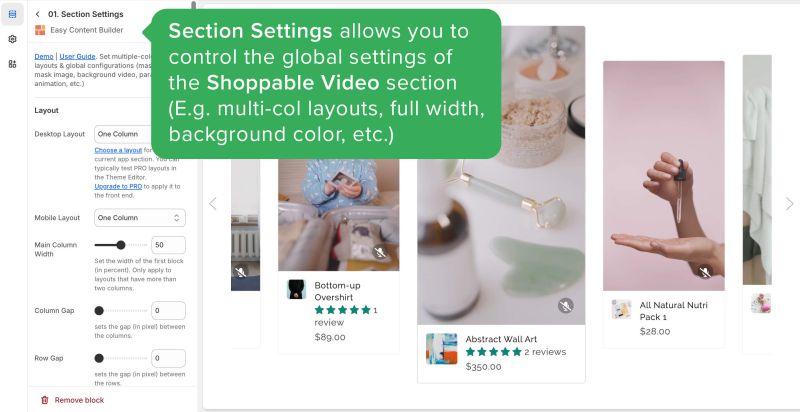
- Step 1: Add a Section Settings section that allows you to control the global settings of the Shoppable Videos section.
- In this special section, you can specify multi-column layouts, enable full width, set the section's maximum width, choose a background color, and define global margins and padding, among other options.
- Note: If you want to add a video carousel next to the Add to Cart button on your product page, use the Video Slider section instead of the Shoppable Videos section. It provides a better viewing experience in a modal, especially on mobile devices.

- Step 2: Add a Shoppable Videos section and customize the settings according to your preferences.

Shoppable Videos global settings
| Section Settings | Description |
|---|---|
| Items per row on Mobile | Choose how many videos display per row on mobile devices. |
| Items per row on Tablet | Choose how many videos display per row on tablets. |
| Items per row on Desktop | Choose how many videos display per row on desktops. |
| Gap | Set the space between items. |
| Center active slide | Enable this to autoplay the center video as the main one; otherwise, the first video is used. |
| Vertical Alignment | Align videos to the top or middle. |
| Show Navigation | Toggle dot navigation on or off. Set it to Mobile Only to show dot navigation only on mobile. |
| Video Aspect Ratio | Choose between horizontal or vertical formats. |
| Video | Upload your chosen video. |
| Video Product | Tag products related to the video content, allowing multiple tags per video. |
| Image Width (px) | Set the product thumbnail width in pixels. |
| Image Height (px) | Set the product thumbnail height in pixels. |
| Image Crop | Cut out a part of the image: Top, Left, Bottom, Right, Center. |
| Image Border | Set the image border - normal, rounded, circle, or pill. |
| Animation on Scroll | This feature is only available for the Pro plan. It lets you apply different types of animation to elements within each section as you scroll down the page. Learn more about scrolling animations here. |
| Margin | Set spacing between elements and their content. |
Add other content blocks
You can add many content blocks to a section you've created. These content blocks will be displayed in different positions within the section, depending on the Desktop/Mobile Layouts you configure.